
JavaScriptReactAPIs40 PointsMid-level
Translate App
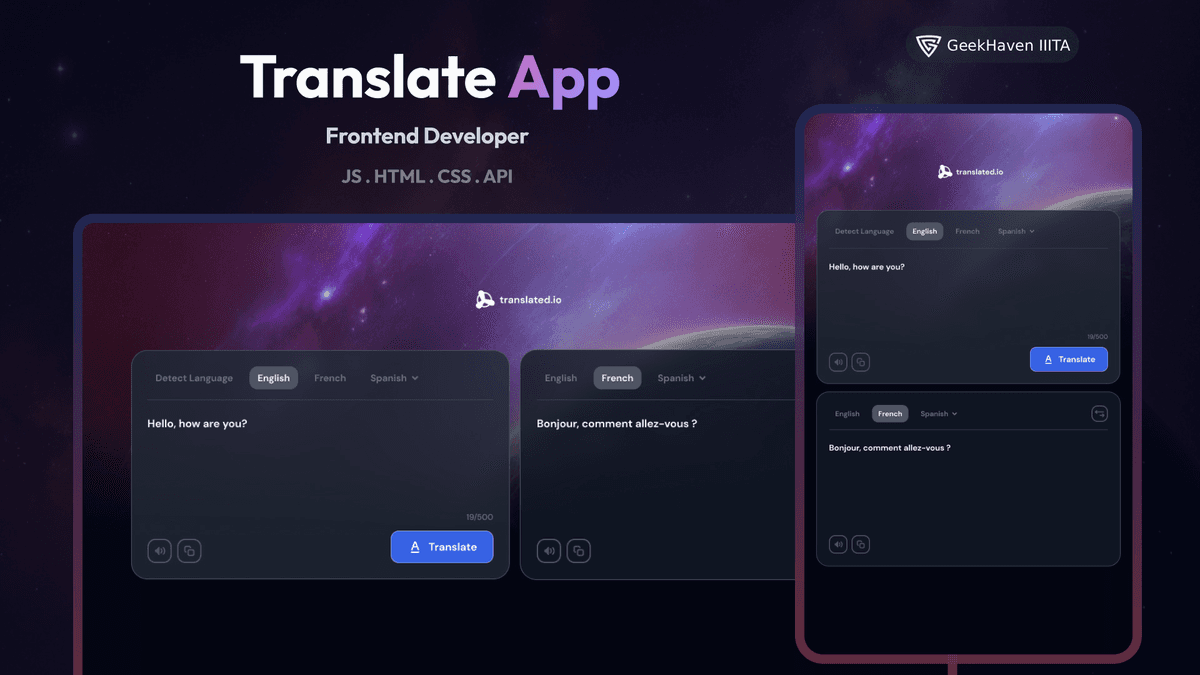
As a Frontend developer, you will be given tasks to build an interactive application. In this challenge, you will build a simple translate application with a given API.
Learning Goals
By completing this challenge, you will:
- •Build an interactive translate application.
- •Implement translation functionality using a given API.
- •Enhance your HTML, CSS, and JavaScript skills.
- •Gain experience in creating real-time updates and optimizing the application (Debouncing/Throttling).
Requirements
You should create a web page that includes the following elements:
- •Create a translate application page that matches the given design.
- •By default, it should translate 'Hello, how are you' to French.
- •Users can change translating text with a maximum of 500 characters.
- •Users can see the translated text after selecting the Translate button.
- •Users can choose different languages to translate from (Detect, English, French).
- •Users can switch translation language and translated language.
- •Users can have the option to listen to the translating and translated texts.
- •Users can copy the translating and translated texts.
Technical Details
To fetch the data for the translation, you should make a POST request to the MyMemory API.
API Documentation:
https://mymemory.translated.net/doc/spec.phpHere's an example of how you can use the fetch API in JavaScript to retrieve the translation data:
javascript
fetch("https://api.mymemory.translated.net/get", {
  method: "POST", // or GET depending on query size
  body: JSON.stringify({
    q: "Hello, how are you",
    langpair: "en|fr",
  }),
  headers: {
    "Content-Type": "application/json",
  },
})
  .then((response) => response.json())
  .then((data) => {
    // Use the translated data here
    console.log(data.responseData.translatedText);
  })
  .catch((error) => {
    console.error("Error:", error);
  });
Instructions for Using a Frontend Library
1. Set Up Your Project:
- Use Create React App or Vite to set up a new React project.
2. Create Components:
- Create a
TranslateAppcomponent as the main container. - Create a
TranslateFormcomponent to handle user input, language selection, and translation requests.
3. Real-time Updates & Optimization:
- Implement real-time updates using debounce or throttling techniques to avoid spamming the API on every keystroke.
4. Text-to-Speech & Copy:
- Use the Web Speech API (
window.speechSynthesis) for text-to-speech functionality. - Use the Clipboard API (
navigator.clipboard.writeText) for copying text.
Example Component Structure
javascript
// TranslateForm.jsx
import React, { useState, useEffect } from "react";

function TranslateForm() {
  const [translatingText, setTranslatingText] = useState("Hello, how are you");
  const [translatedText, setTranslatedText] = useState("");
  const [langPair, setLangPair] = useState("en|fr");

  // Effect for debounced translation could go here

  const handleTranslate = () => {
    // Fetch translation data and set translatedText
  };

  return (
    <div className="translate-form">
      <textarea
        value={translatingText}
        onChange={(e) => setTranslatingText(e.target.value)}
        maxLength={500}
      />
      <div className="controls">
         <button onClick={handleTranslate}>Translate</button>
         {/* Language Selectors */}
      </div>
      <div className="output-area">
        {translatedText}
      </div>
    </div>
  );
}

export default TranslateForm;
Tech Stack
For this project, you have the flexibility to use HTML, CSS, and JavaScript or a Front-end library like React, Vue, etc. Consider the learning curve and additional setup required when choosing a library.
User Stories
Acceptance Criteria Checklist
Create a translate application page that matches the given design.
By default, it should translate 'Hello, how are you' to French.
Users can change translating text with a maximum of 500 characters.
Users can see the translated text after selecting the Translate button.
Users can choose different languages to translate from. They should see at least 3 options: Detect Language, English and French.
Users can switch translation language and translated language.
Users can have the option to listen to the translating and translated texts.
Users can copy the translating and translated texts.